Configuring Policy Settings
The strictness of the policies created is customizable with respect to the roles and responsibilities of the user, to whom the policy applies. As a part of the security policy creation process, the application allows the configuration of the following authentication rules while creating a password:
Password Policy
A password policy defines the password creation rules that are used to determine whether a password is strong enough to ensure data security. To configure the rules to create a new password, click SETUP in the PASSWORD POLICY section and update the following attributes:
Minimum length of a password - Choose the minimum number of characters required to create the password.
Note: You can choose a value between 8 and 15. In the Default policy, this field is set to 8.Mixed password - Enable this field to enforce the users to have both upper and lower case alphabets in their password.
Note: This field is disabled in the Default policy.Minimum special characters - Choose the minimum number of special characters required to create the password.
Note: You can choose a value between 1 and 10. In the Default policy, this field is set to 1.Minimum numeric digits - Choose the minimum number of numeric characters required to create the password.
Note: You can choose a value between 1 and 10. In the Default policy, this field is set to 1.Password age - Select the frequency at which the password has to be changed (for example, 30 days and 90 days).
Note: This field is set to Not Required in the Default policy.Refusal of previously used passwords - Choose the number of recent passwords that must be denied to be set as the new password.
Note: You can block the usage of upto 10 recent passwords. In the Default policy, this field is set to 2.
Multi Factor Authentication (MFA)
It is an authentication method that requires the users to provide more than one verification factor to gain access to a resource such as an application or an online account. Rather than just seeking the user credentials, MFA requires additional verification factor(s), which decreases the likelihood of unauthorized access.
The application supports MFA using one-time password (OTP) through smartphones, that is, MFA in Facilio requires an OTP for authentication. In order to enable MFA as a part of the security policy, click SETUP in the MULTI FACTOR AUTHENTICATION section and enable the toggle button corresponding to Time Based OTP. The feature is now enabled for the users to whom the security policy applies.
Web Session Controls
The web session lifetime defines the active period of a session, that is, the frequency at which the users have to identify themselves to stay connected to the application. This feature is used to revoke access from users, who gained unauthorized access to the application.
The session control activities can be configured for individual service providers in an organization, as required. In order to configure session control settings as a part of the application’s security policy, click SETUP in the WEB SESSION CONTROLS section and set the timeout period (for example, 1 day and 5 days) in the Session Lifetime field.
Allowed IPs
What is meant by IP address?
An Internet Protocol (IP) address is a unique numerical identifier assigned to a device or network. It helps identify the source and destination of data transmitted over the internet, enabling devices to communicate with each other.
What is IP restriction?
IP restriction is a security feature that allows you to whitelist specific IP addresses permitted to access the facilio application and portals. By configuring IP restrictions, you can control which networks are allowed to connect. Any access attempt from an IP address that is not whitelisted will be automatically denied.
Secure your organization users' accounts:
If you are an organization administrator and want to ensure that user's access facilio portals only from trusted and secure networks, you can enforce IP restrictions across all user accounts or specific user accounts having high privileges by configuring appropriate security policies.
How to add an allowed IP address:
You can configure IP restrictions by adding the IP addresses or IP ranges of approved networks. The following options are available.
- Your current IP address
- A range of IP addresses (allows multiple IPs to be added as a single entry instead of individual static IPs)
Steps to add:
- Sign in to the Facilio Maintenance Portal
- From the left menu, click Settings.
- Under Users and Access, select Security Policy.
- Create a new security policy or select an existing one.
- In the left-hand side (LHS) menu, click Allowed IPs.
- Provide a name for the IP range and add the required IP address or range.
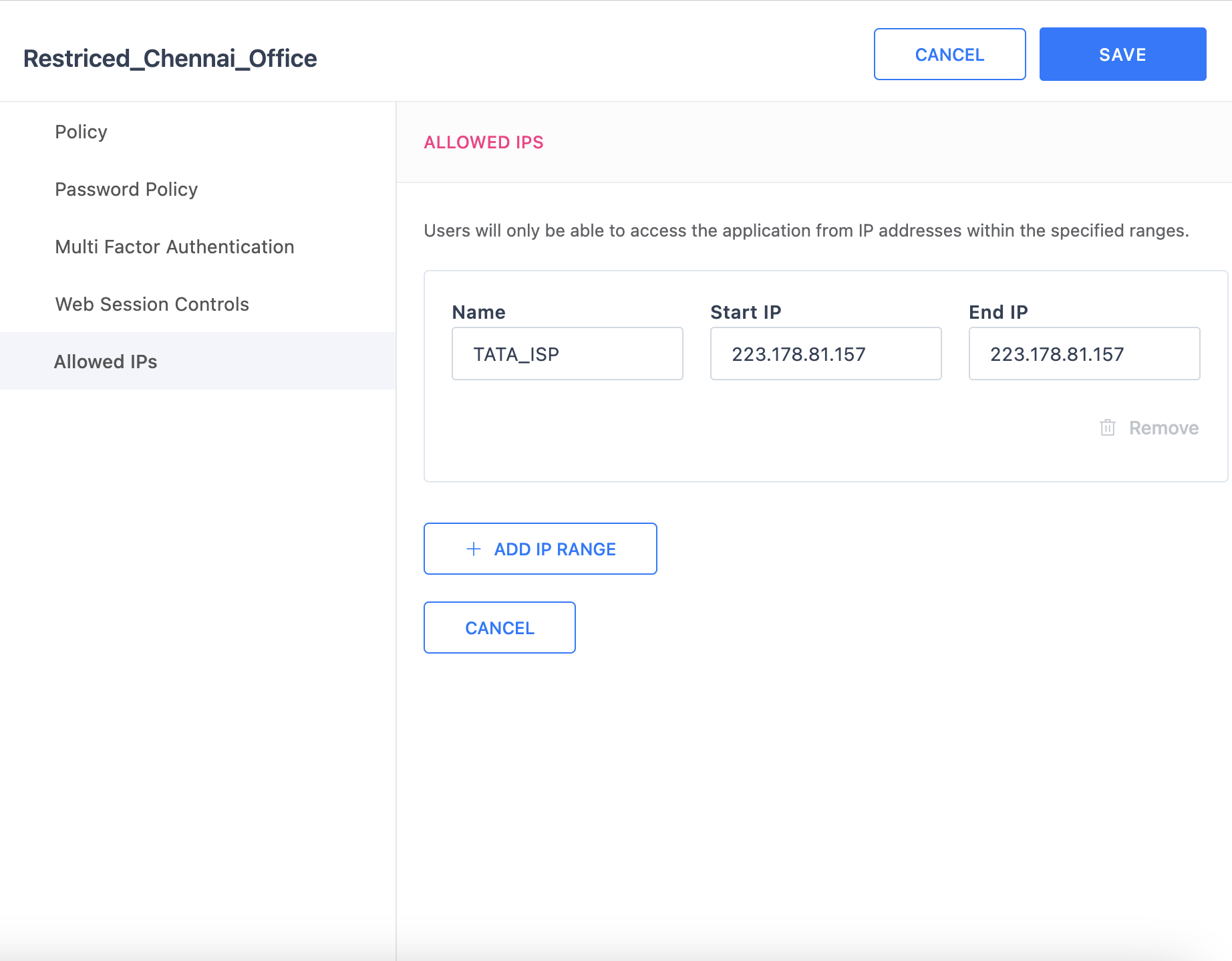
- Click Save